
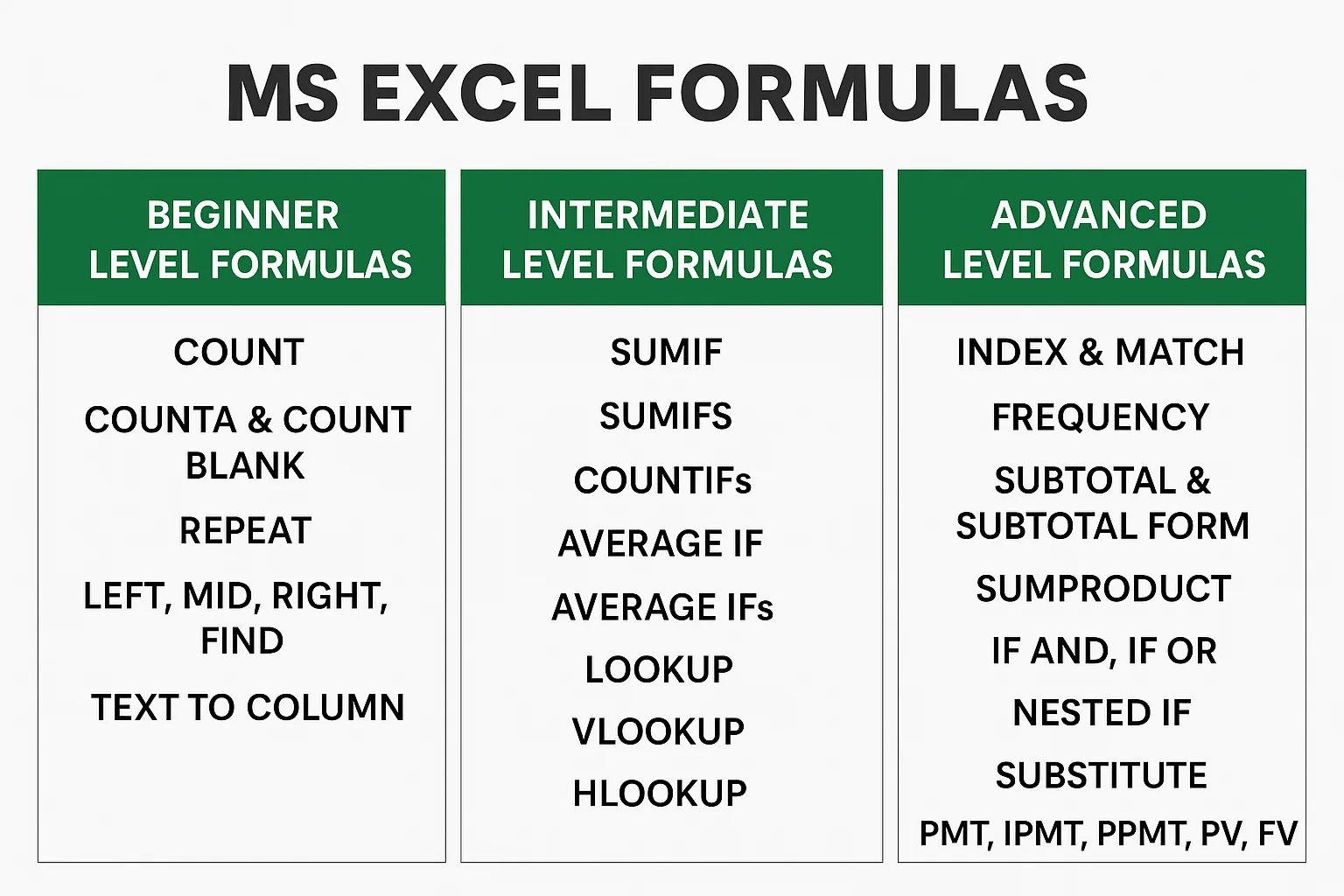
Learn 30 essential MS Excel formulas with examples, images, and a free downloadable practice sheet. Perfect for beginners, students, job seekers, and data analysts. You will learn how to use the most effective Excel formulas to generate reports, manage data, and perform data analysis.
Introduction
Today, everyone wants exact information, and we all know that information comes from data. Data analysis has become an essential skill these days, and every business wants to extract information from it to make predictions for the future.
MS Excel is a software that is used widely for performing arithmetic, logical operations, and generating business insights. It helps you perform calculations, analyze information, and automate repetitive tasks using formulas. Furthermore, to use Excel, you must have an understanding of MS Excel formulas. In this detailed guide, you will master the 30 best MS Excel formulas from beginner to advanced level.
What is MS Excel
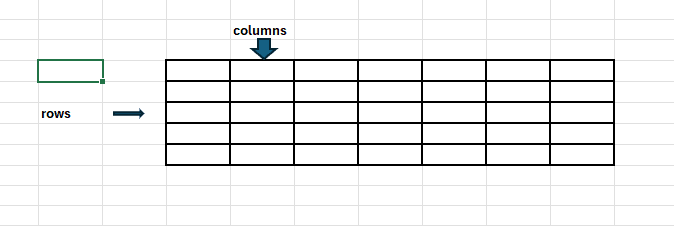
MS Excel is a spreadsheet program developed by Microsoft. It allows users to organize, format, create charts, and calculate data in a spreadsheet. Data is organized into rows and columns. It is an application software that is used by everyone, including students, small businesses, tech startups, and data professionals.
How to Download MS Excel (Step-by-Step) 2026 Guide
- Go to your Browser (say Google Chrome)
- Search for Office Customization Tool
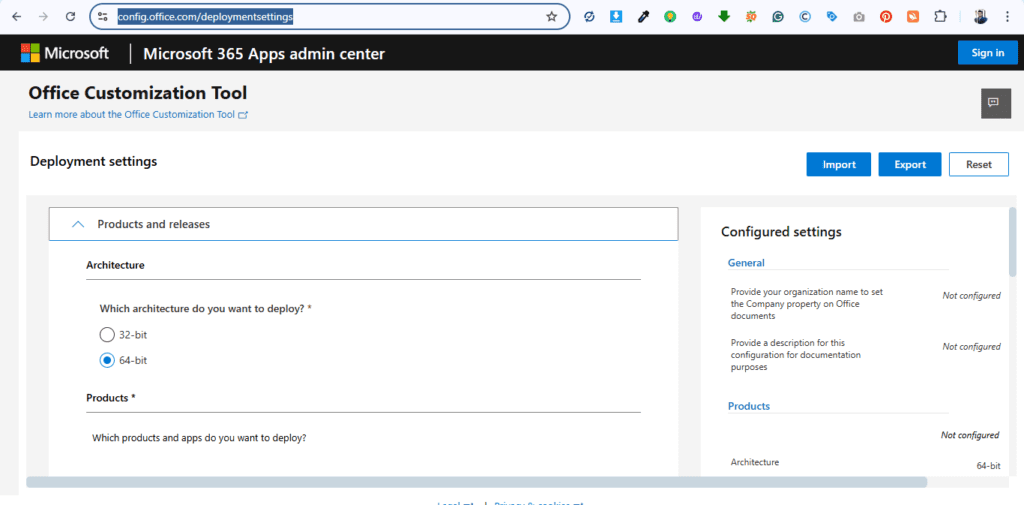
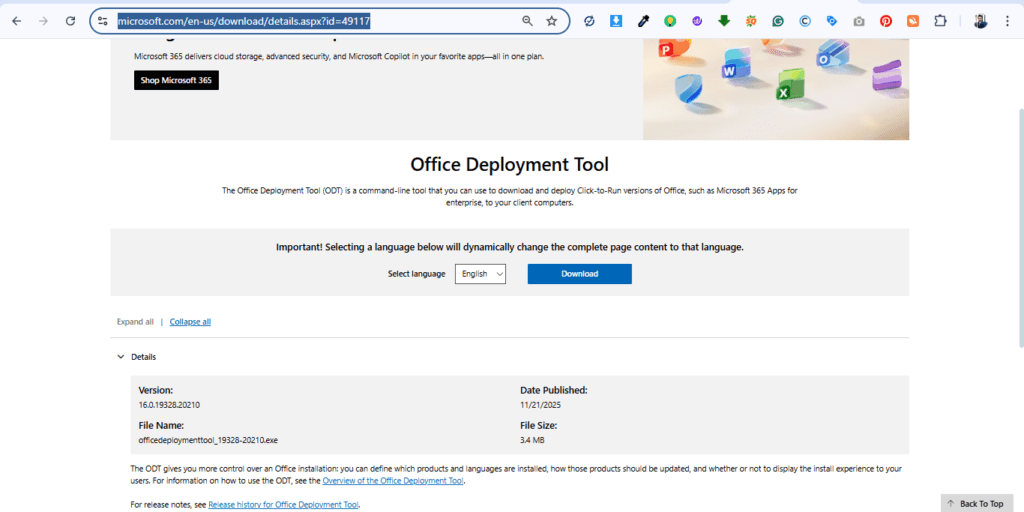
3. Now, open a new tab and search for Office Deployment Tool and click on the download button to download the file.
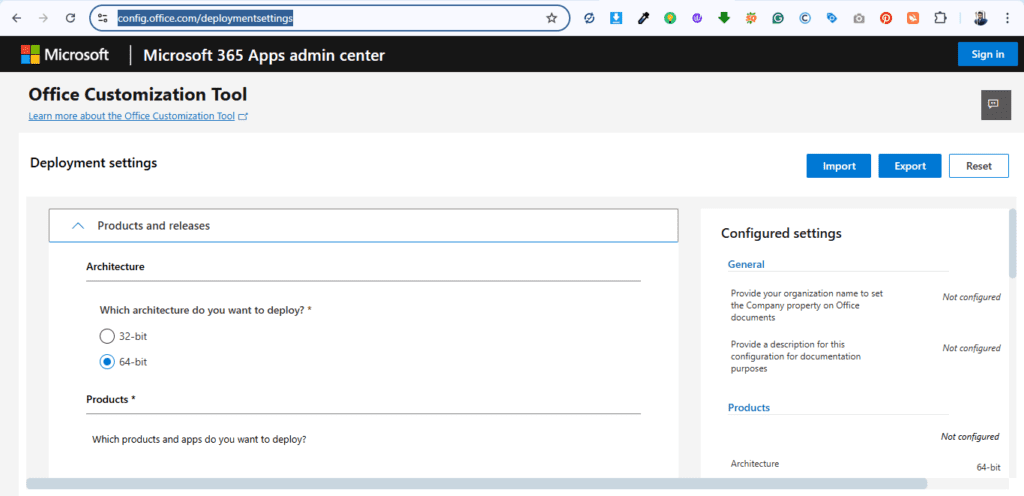
4. Once you are done with the download, go to the office customization tab and choose the correct architecture for your system (either 32-bit or 64-bit)
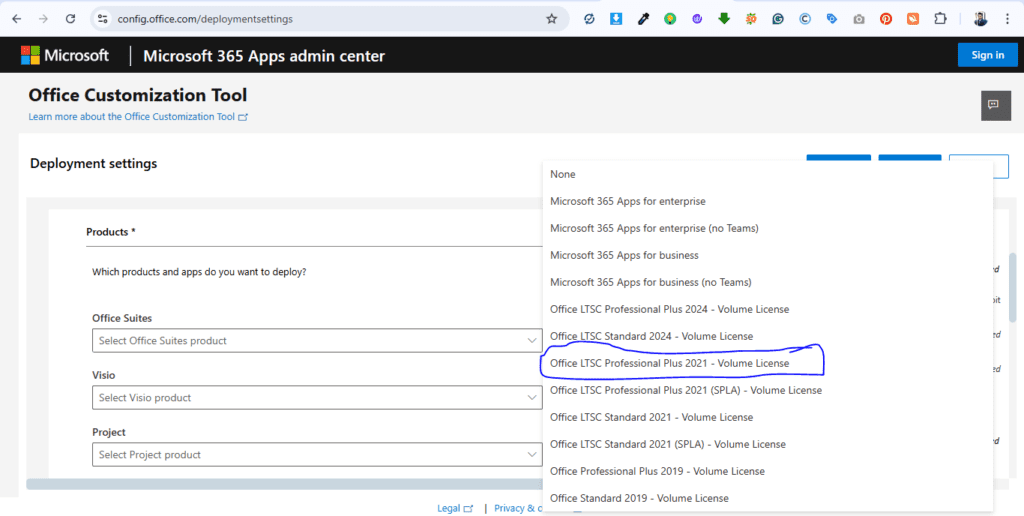
5. Now select the office edition. Choose Office LTSC Professional Plus 2021 – Volume License.
6. Keep the other settings as the default.
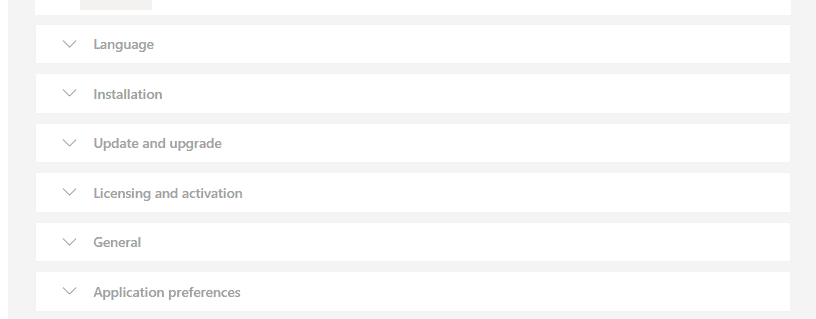
7. Select the apps you want to download
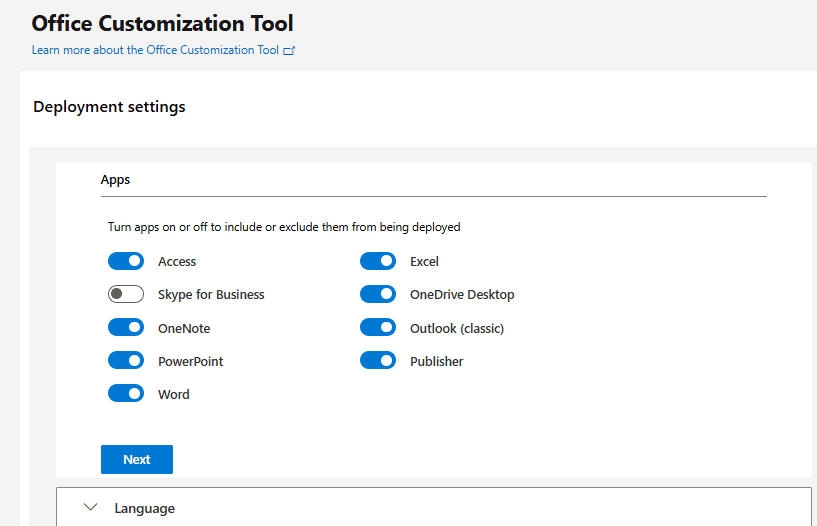
8. Click on Next until you reach the Finish button
9. In the end, you have to open your command prompt
10. Run it as an administrator and go to the file folder
11. Type this command to run the installer – setup /configure configuration.xml
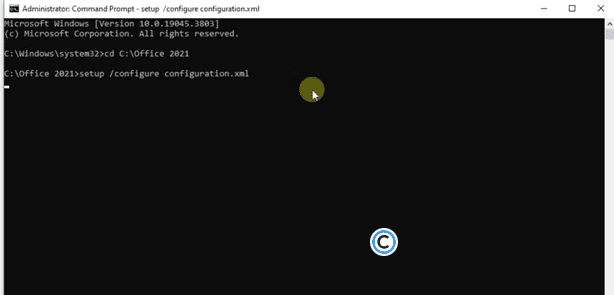
12. The installer will take some time based on your internet speed. You can close the command prompt, and the installer will continue the installation
Why Excel Skills Matter in 2026
MS Excel will remain the most in-demand skill even in 2026. It can be very beneficial to blend AI and use Power BI with Excel to make reliable data predictions, create infographics, charts, and other data operations, including advanced data analysis.
Additionally, Excel is an easy-to-use software. It only requires knowing the syntax of Excel functions and logical formulas, and it can compute results that are accurate and meet the requirements.
Lastly, mastering MS Excel functions will help you boost your professional value in data-driven roles, and you will be able to compute results for your business, academic, and personal projects.
Case Study for Excel Functions
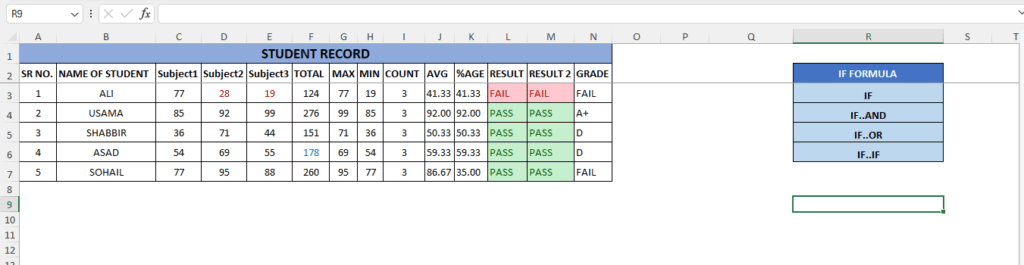
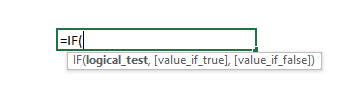
Syntax for IF Formula
What are MS Excel Formulas
MS Excel Formulas are expressions that we use to perform calculations or data manipulation with a spreadsheet.
Also, Excel formulas are comprised of pre-defined functions, mathematical operators, and logical formulas, and have cell references.
How Excel Interprets an Entry as a Calculation
MS Excel Formulas begin with an equal (=) sign that lets Excel interpret the entity as a calculation rather than plain text.
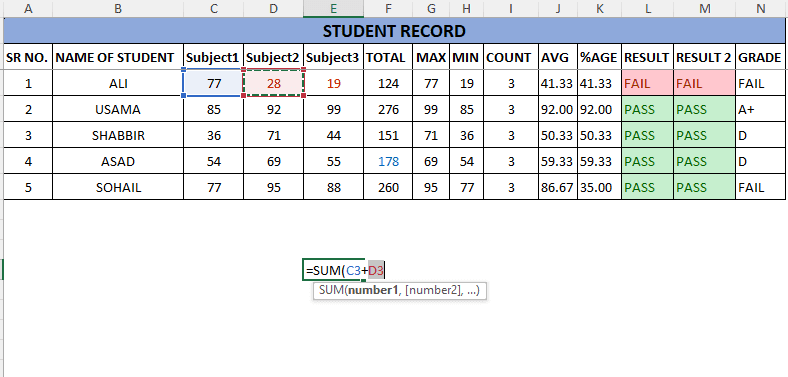
In the above demonstration, we use the “=” sign before SUM that directs Excel to consider it as a calculation.
Importance of MS Excel Formulas for Data Analysis
In data analysis, MS Excel formulas can be very useful because of
- Efficiency
- Reliability
- Automation
- Customization
- Accurate Predictions
- Future Forecasting
- Accuracy in making Business Insights, Infographics, and much more.
What are Some Must-Know Excel Shortcut Keys?
These are some must-know shortcut keys every Excel user wants to know
| SR NO | SHORTCUT KEY | PURPOSE |
| 1 | ALT + T | Applying a Filter |
| 2 | Ctrl + Alt + V | Copy Values without formula |
| 3 | F11 | INSERTING A CHART |
| 4 | Ctrl + Shift + 1 | Number |
| 5 | Ctrl + Shift + 2 | Time |
| 6 | Ctrl + Shift + # | Date |
| 7 | Ctrl + Shift + ~ | General |
| 8 | ALT + H + O + I | Auto Fit Column |
| 9 | ALT + Enter | Wrap Text |
| 10 | F2 | Edit Active Cell |
| 11 | Ctrl + Shift + Enter | Convert into an Array |
| 12 | Ctrl + ‘ | To Copy Formula |
| 13 | F4 | Converts Range into Fixed/ Absolute Format |
| 14 | Ctrl + D | Duplicates content from the above row |
30 Must-Know MS Excel Formulas to Master Excel in 2026
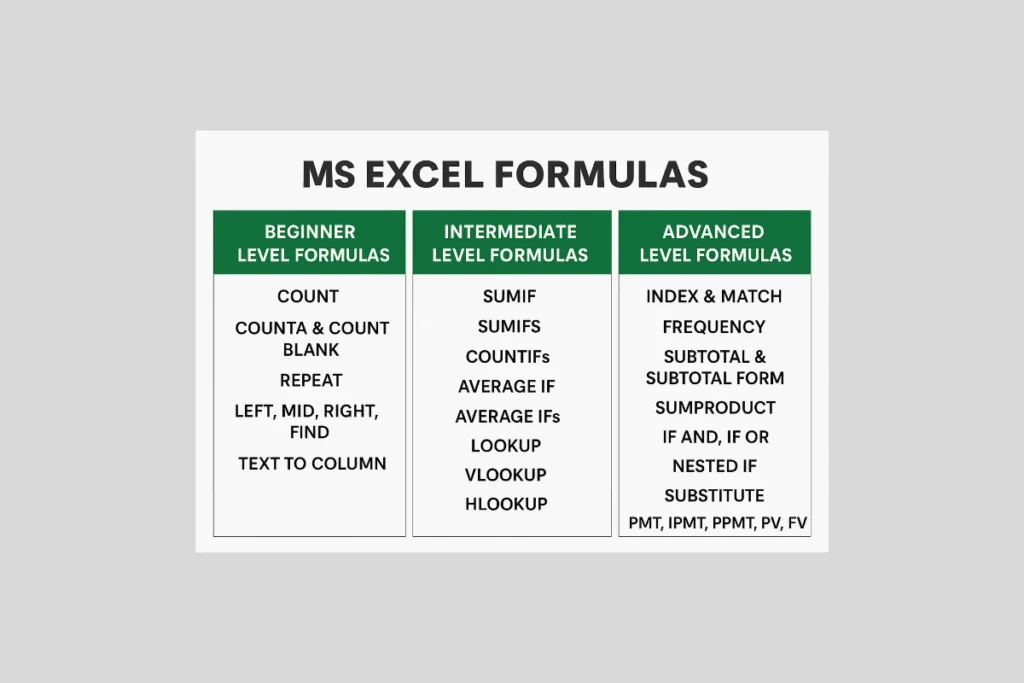
Now you will see the 30 best MS Excel formulas, and by the end of this guide, you will be someone who has grasped advanced knowledge of MS Excel. For a better hierarchy, I have classified this guide into 3 phases.
Beginner-friendly MS Excel Guide
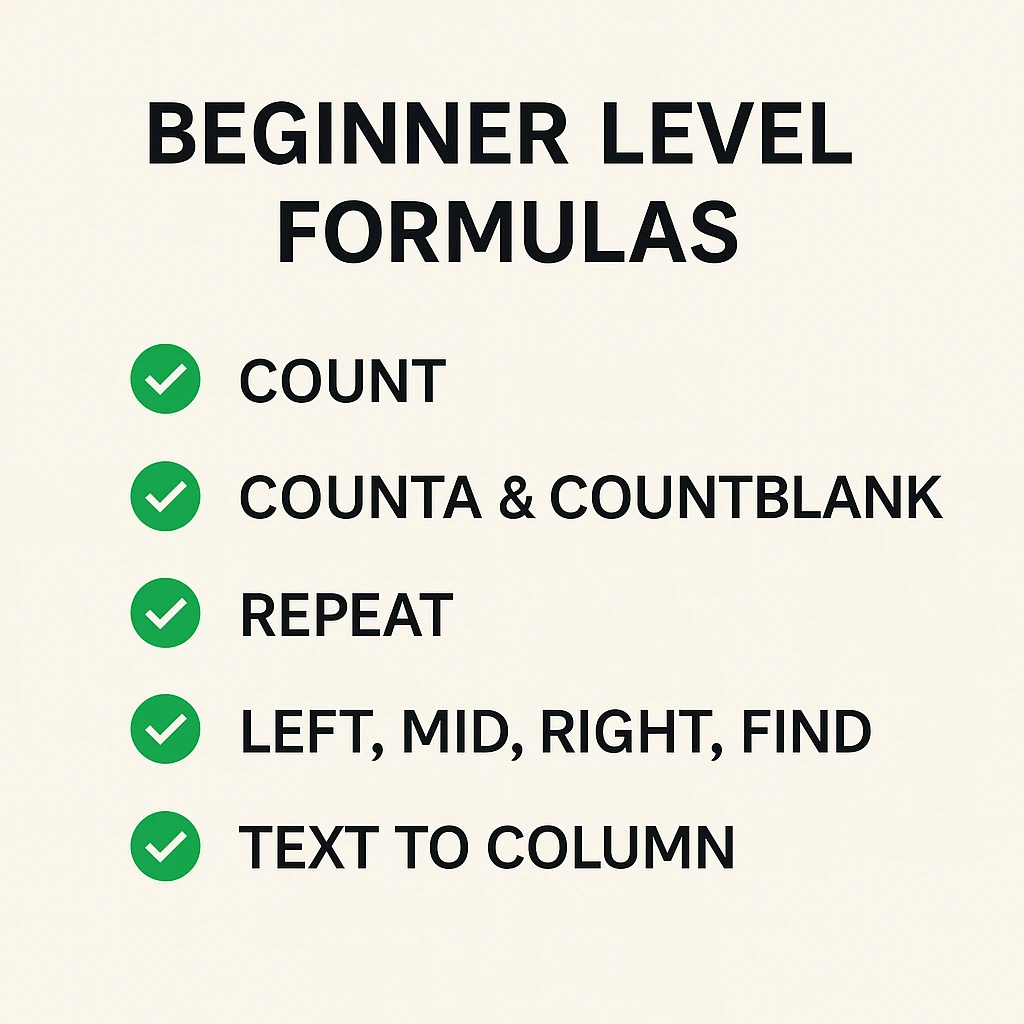
Firstly, we will learn basic level formulas, including an Excel tutorial for beginners
1. COUNT
2. COUNTA & COUNTBLANK
3. REPEAT
4. LEFT
5. MID
6. RIGHT
7. FIND
8. TEXT TO COLUMN
Intermediate Level MS Excel Guide
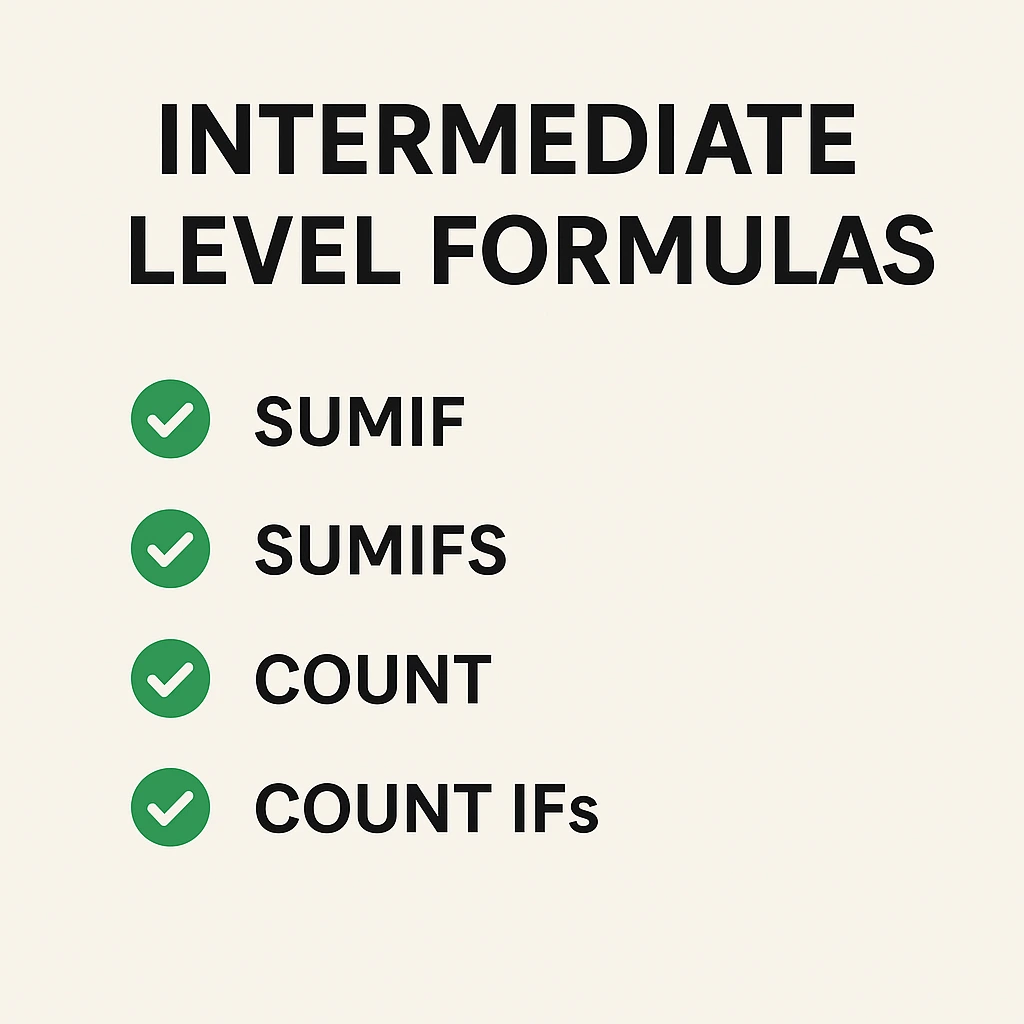
Then, we will move on to mastering the intermediate MS Excel formulas list
1. SUMIF
2. SUMIFS
3. COUNTIFs
4. AVERAGE IF
5. AVERAGE IFs
6. LOOKUP
7. VLOOKUP
8. HLOOKUP
9. IF AND
10. IF OR
11. NESTED IF
12. SUBSTITUTE
13. IFORMULA
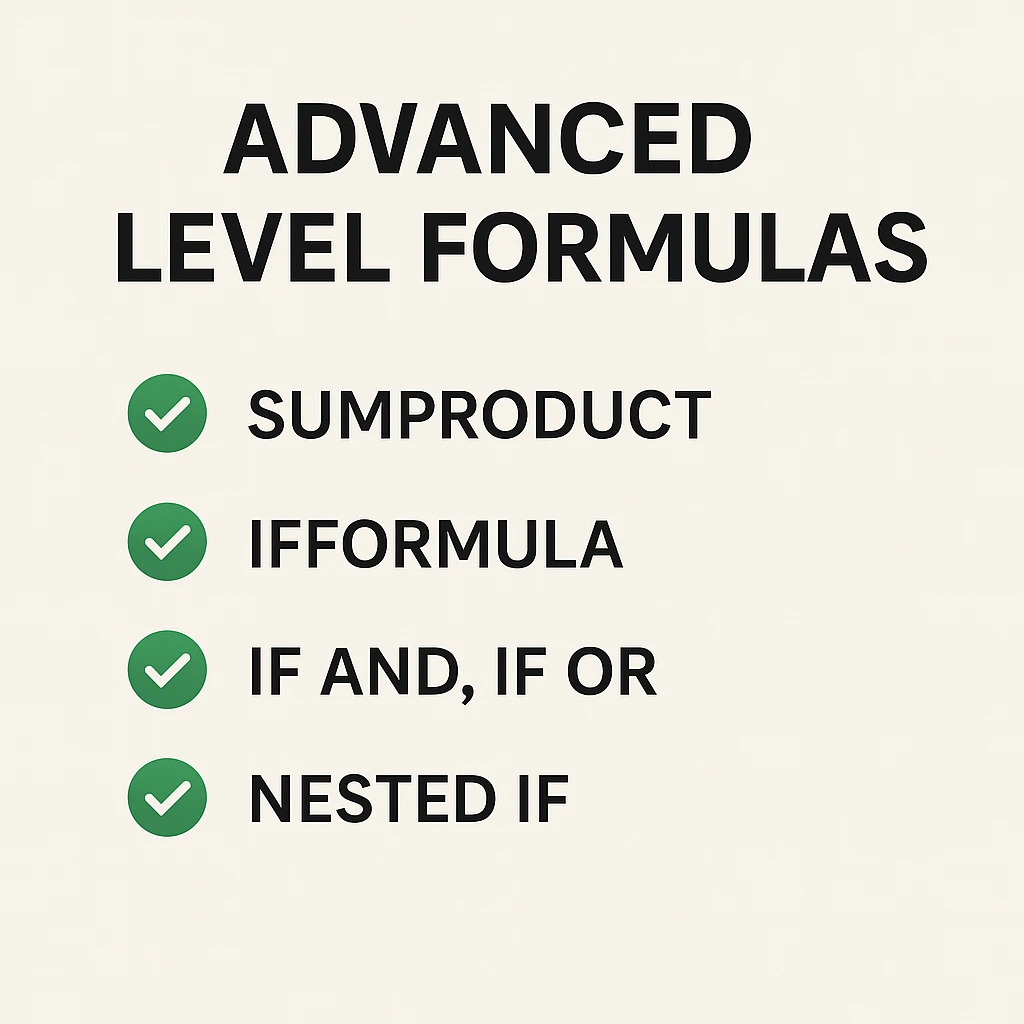
Advanced Excel Formulas Guide
Finally, we will delve into the most essential logical formulas of MS Excel you must know for advanced-level data manipulation within MS Excel.
1. INDEX
2. MATCH
3. FREQUENCY
4. SUBTOTAL
5. SUBTOTAL FORM
6. SUMPRODUCT
7. PMT
8. IPMT
9. PPMT
10. PV
11. FV
MS Excel Formulas for Beginners
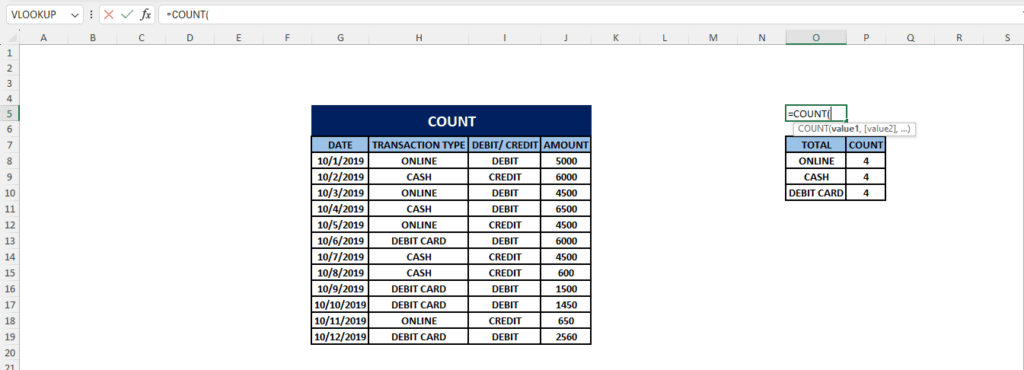
1. COUNT
The count () function is used to count how many cells contain numbers.
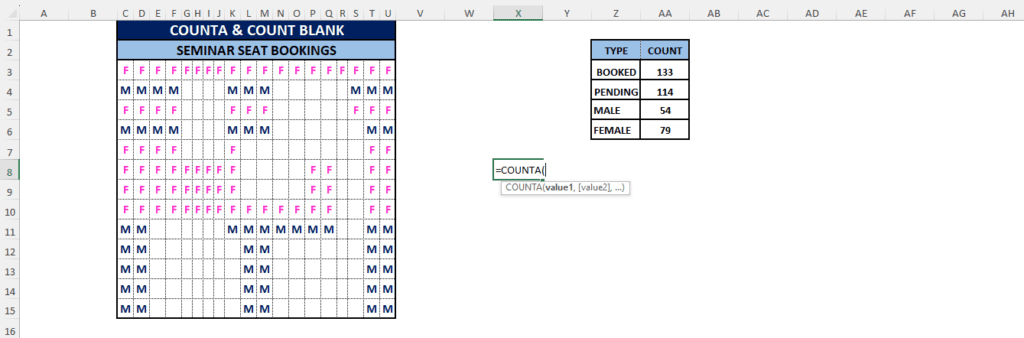
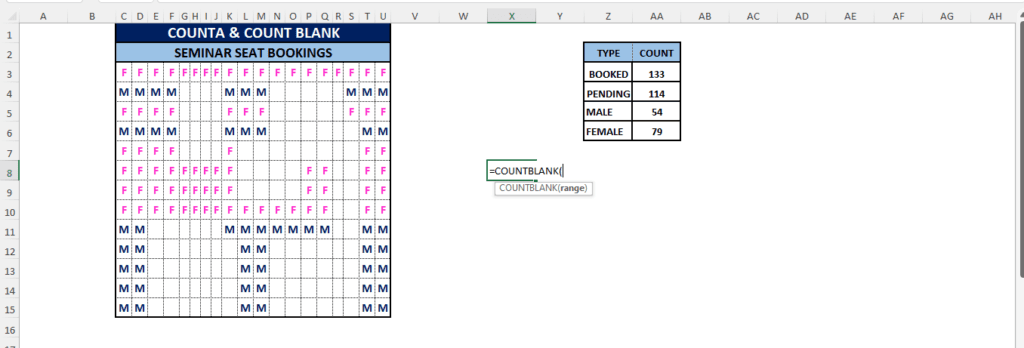
2. COUNTA & COUNTBLANK
In MS Excel formulas, This formula COUNTA () counts non-empty cells, and the COUNTBLANK () counts empty cells.
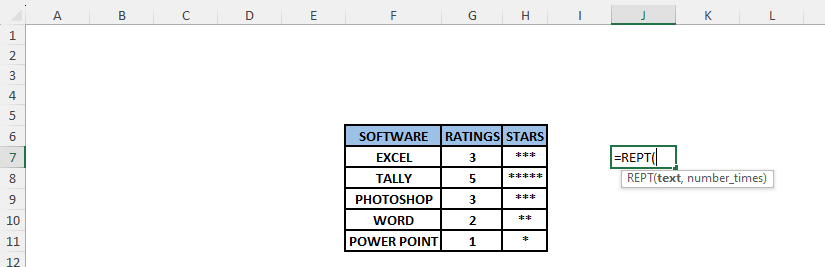
3. REPT
The REPT () repeats a text string a specified number of times.
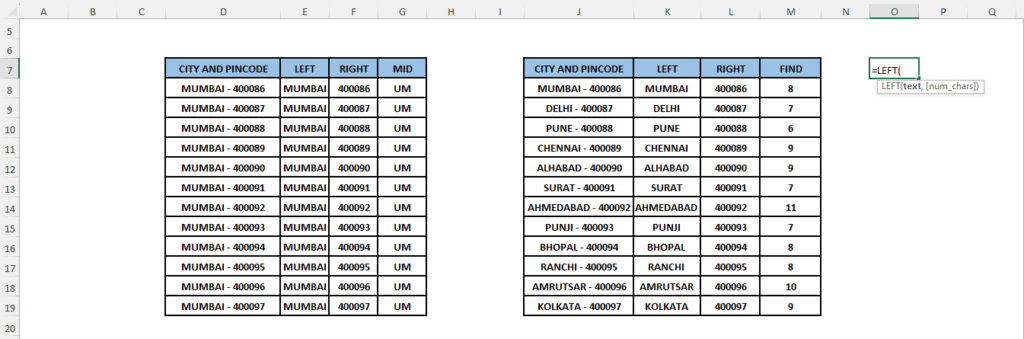
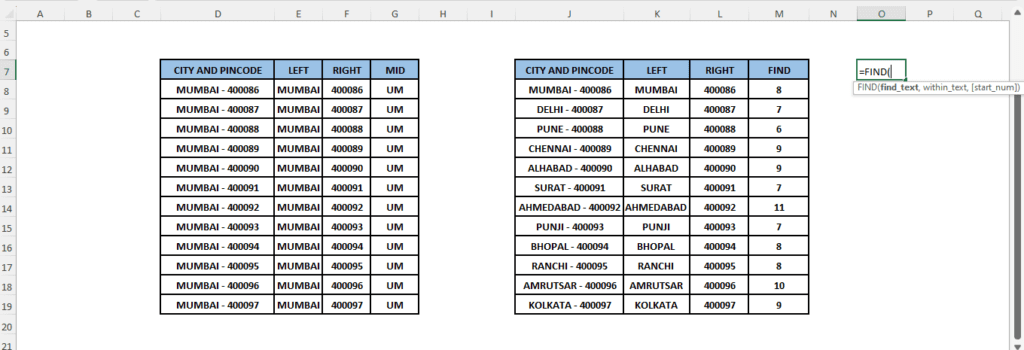
4. LEFT
This Excel formula is used to extract a specific number of characters from the beginning (left side) of a text string.
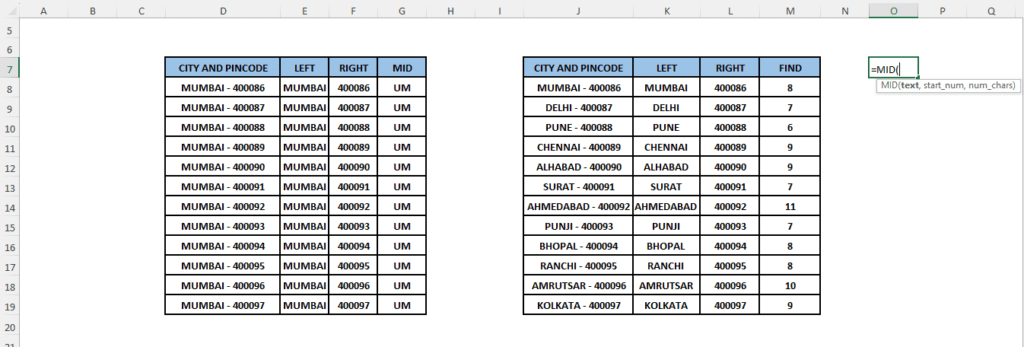
5. MID
This Excel function extracts characters from the middle of a text string, starting at any position you choose.
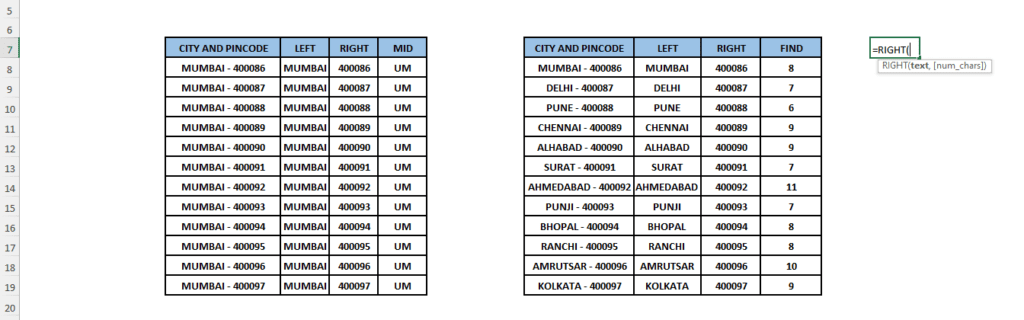
6. RIGHT
This formula extracts a specific number of characters from the end (right side) of a text string.
7. FIND
This formula locates the position of a character or text within another text string.
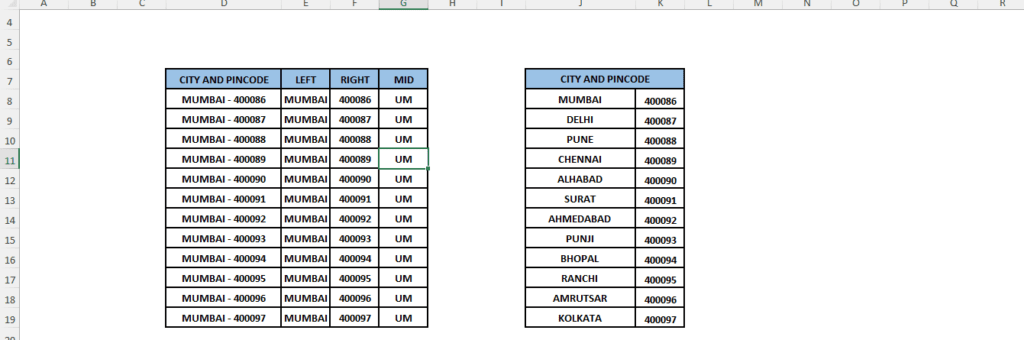
8. TEXT TO COLUMN
This Excel function splits text into separate columns using a delimiter.
Intermediate MS Excel Functions
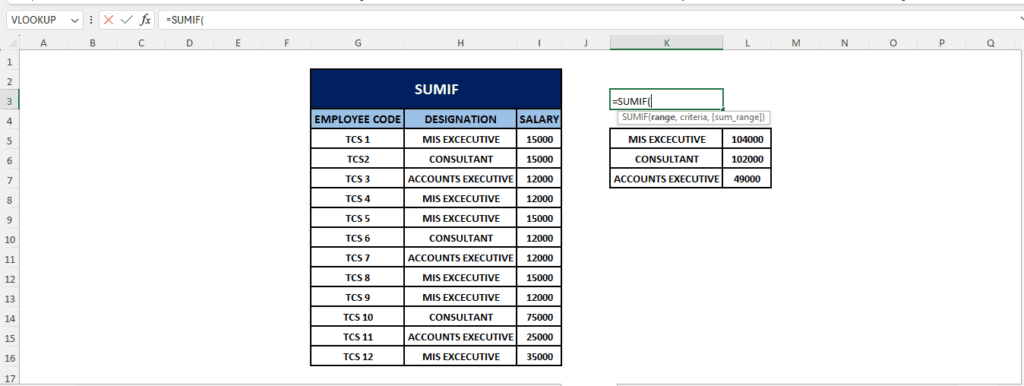
1. SUMIF
This Excel formula is used to add values based on a single condition
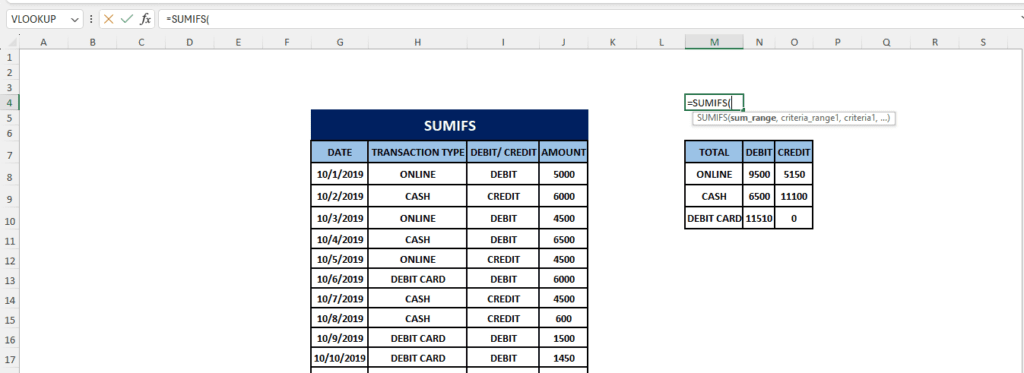
2. SUMIFS
It simply adds values based on multiple conditions.
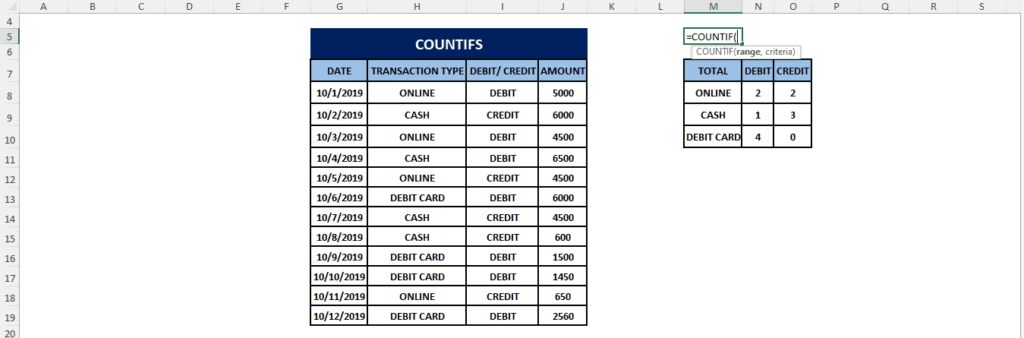
3. COUNTIFs
It counts cells that meet one or more criteria.
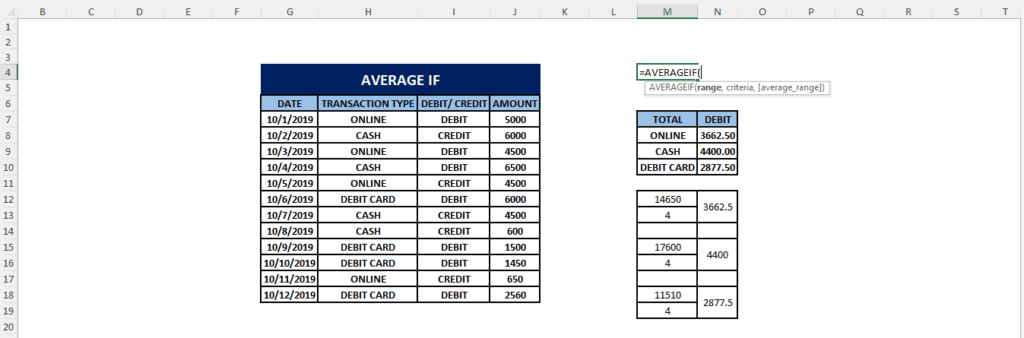
4. AVERAGE IF
This MS Excel formula calculates the average of values that meet a condition.
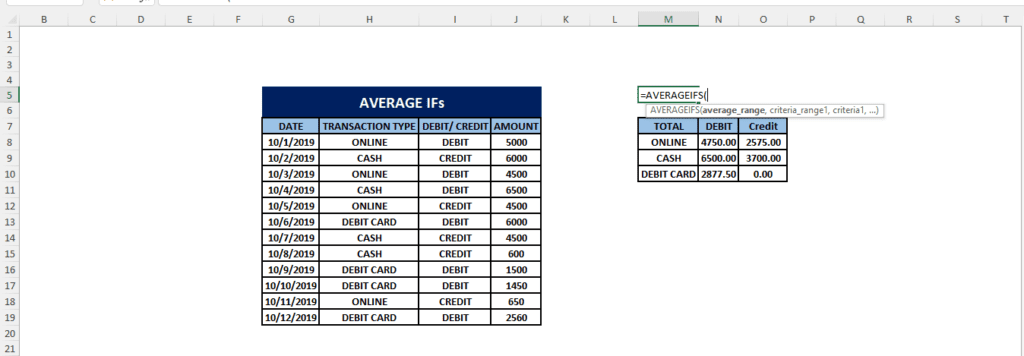
5. AVERAGE IFs
This calculates an average based on multiple conditions.
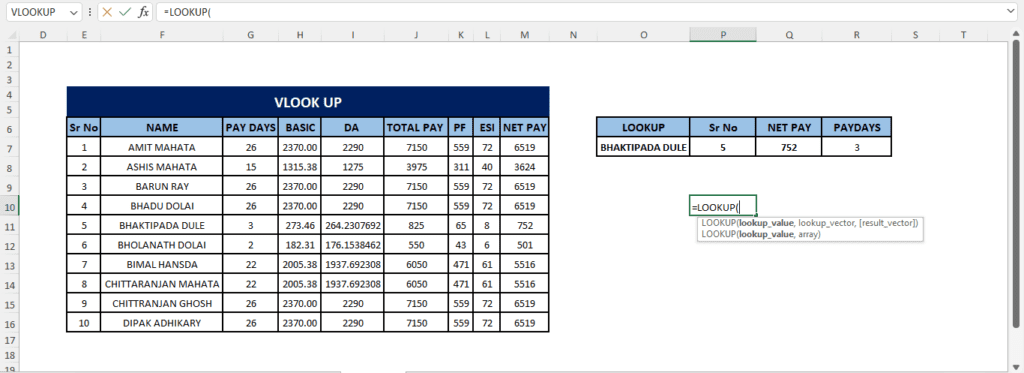
6. LOOKUP
This Excel formula is helpful when you want to find a value in a single row or column.
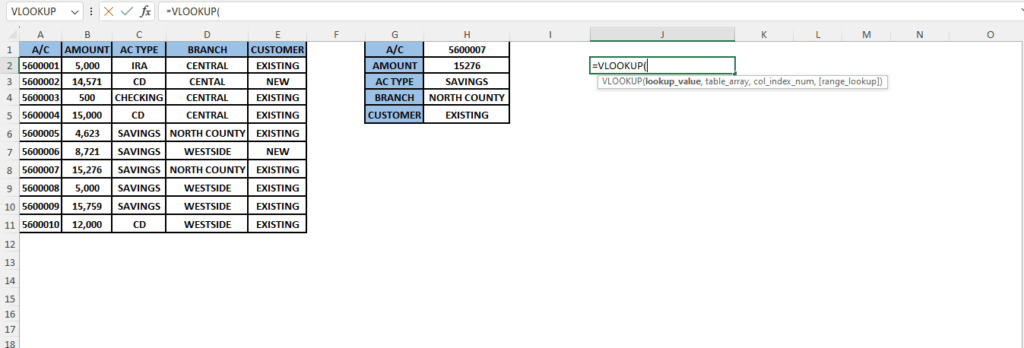
7. VLOOKUP
Similarly, VLOOKUP searches for a value vertically in a table and returns a corresponding value.
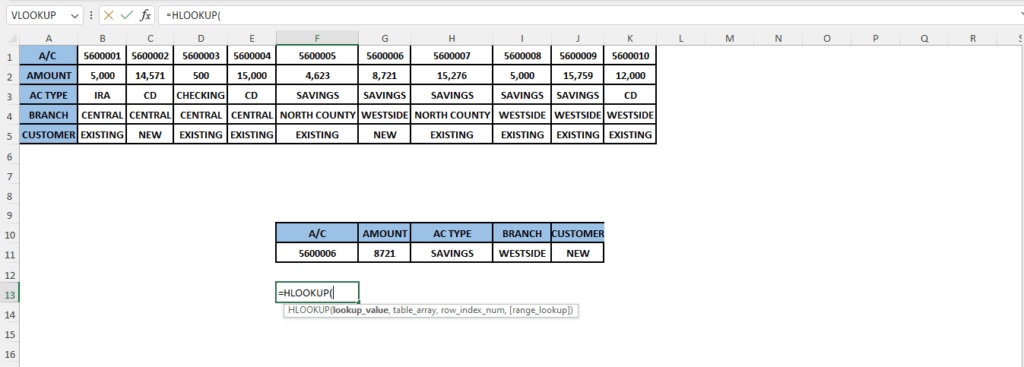
8. HLOOKUP
HLOOKUP searches for a value horizontally in a table.
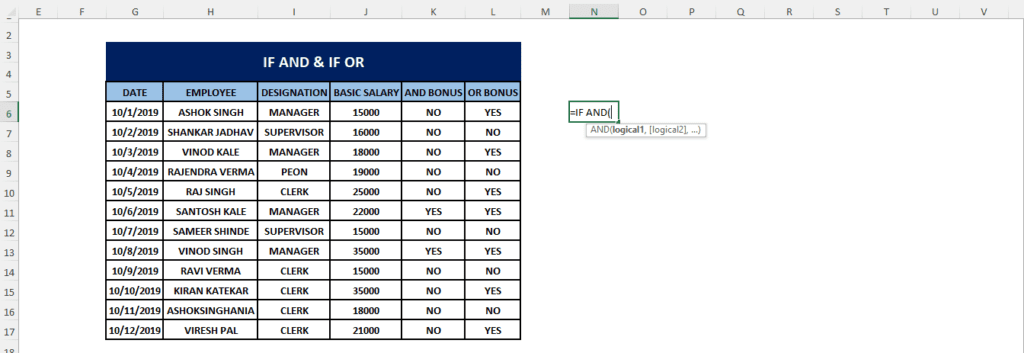
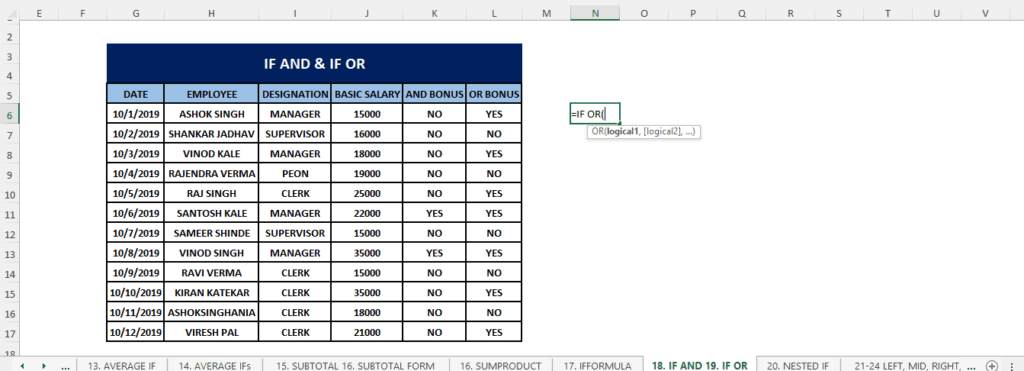
9. IF AND, IF OR
These MS Excel formulas are used to test multiple logical conditions inside an IF formula.
10. NESTED IF
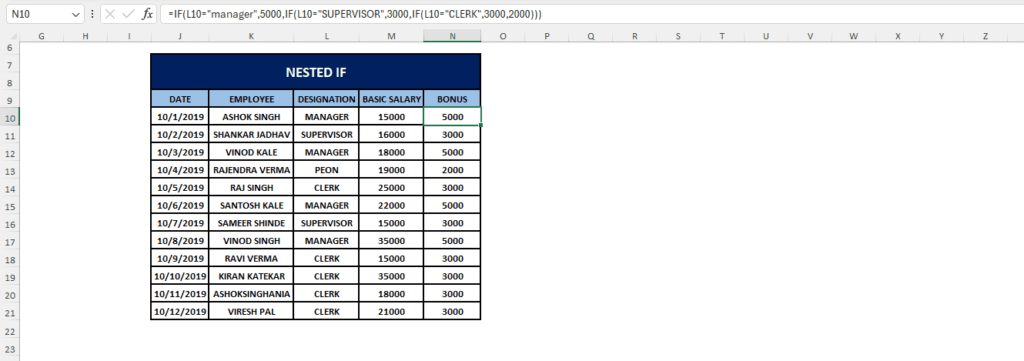
Nested IF uses multiple IF statements to test various conditions.
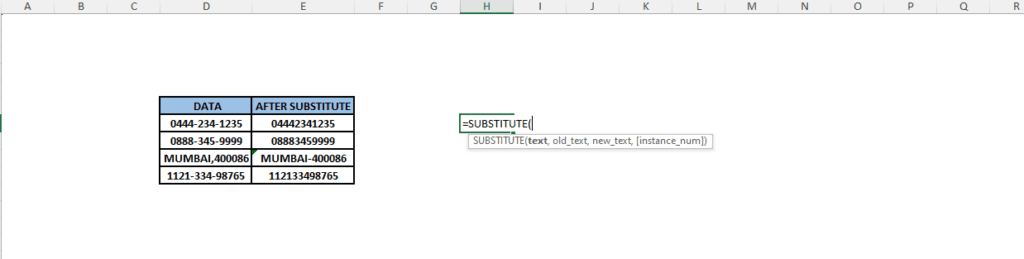
11. SUBSTITUTE
Substitute is used to replace part of a text string with another text string.
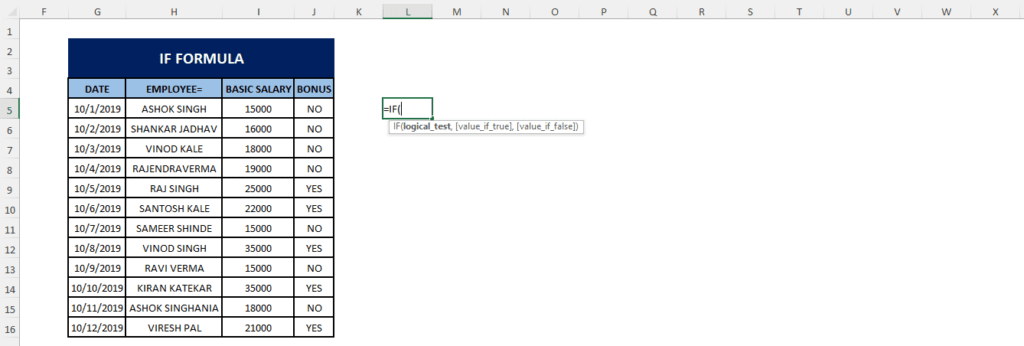
12. IFORMULA
This Excel function is used to check for conditions and returns True if the condition meets the criteria or False if the criteria do not match the specified condition.
Advanced MS Excel Formulas Guide
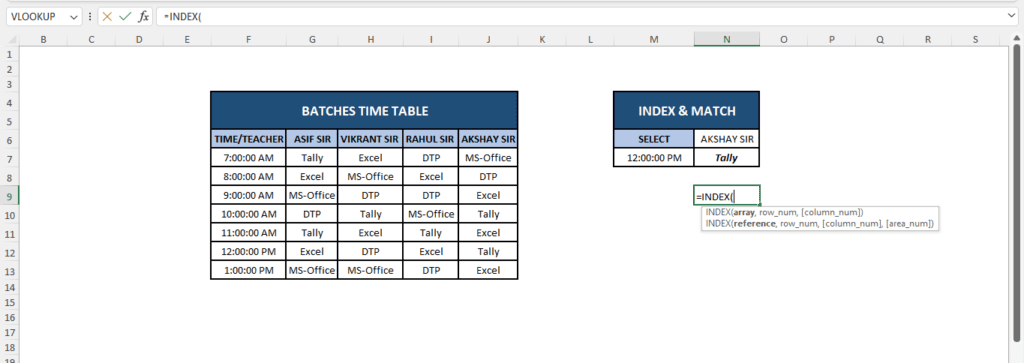
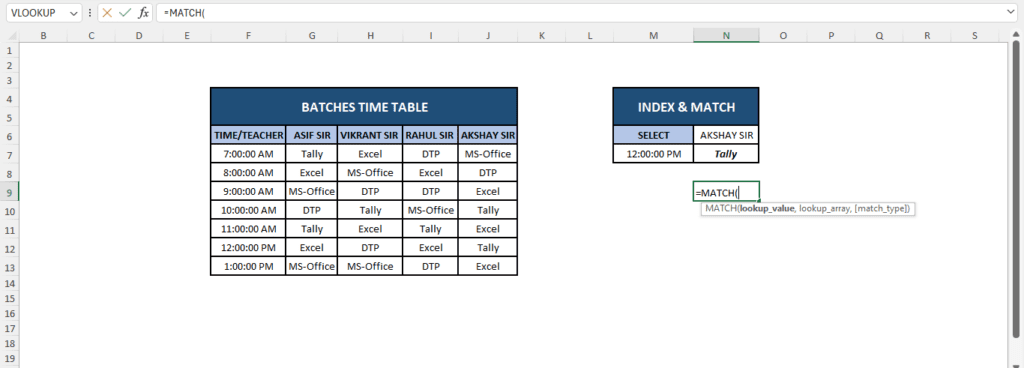
1. INDEX & MATCH
This advanced MS Excel formula is used to look up values with more flexibility and accuracy than VLOOKUP.
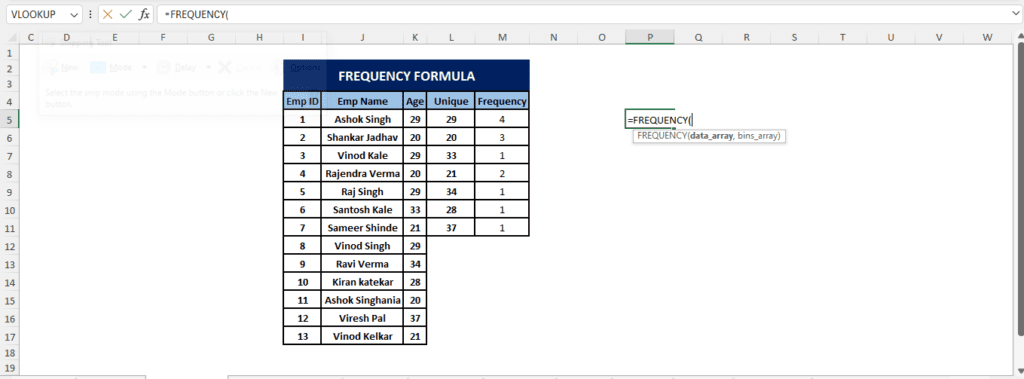
2. FREQUENCY
Frequency is a well-known formula that returns how often values occur in a range, used for data distribution analysis.
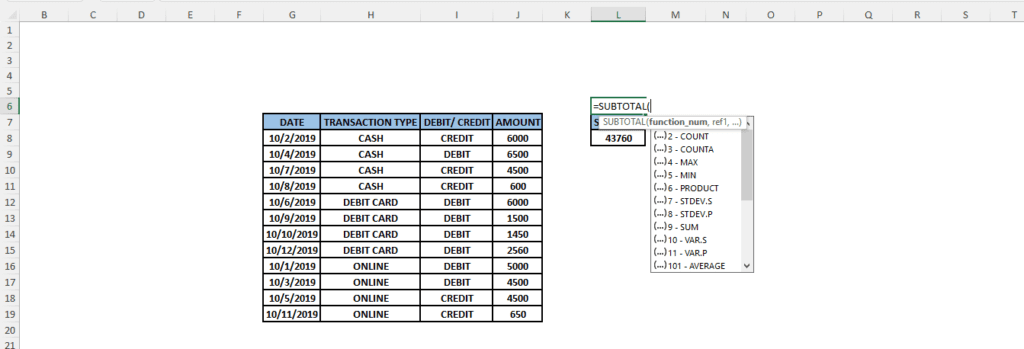
3. SUBTOTAL & SUBTOTAL FORM
The subtotal performs calculations like SUM, COUNT, and AVERAGE while ignoring filtered or hidden rows.
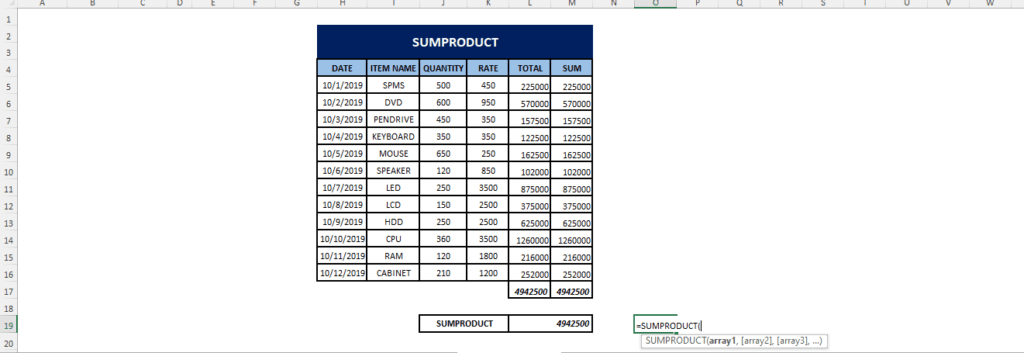
4. SUMPRODUCT
This Excel function multiplies corresponding items in arrays and then sums the results, useful for complex conditional calculations.
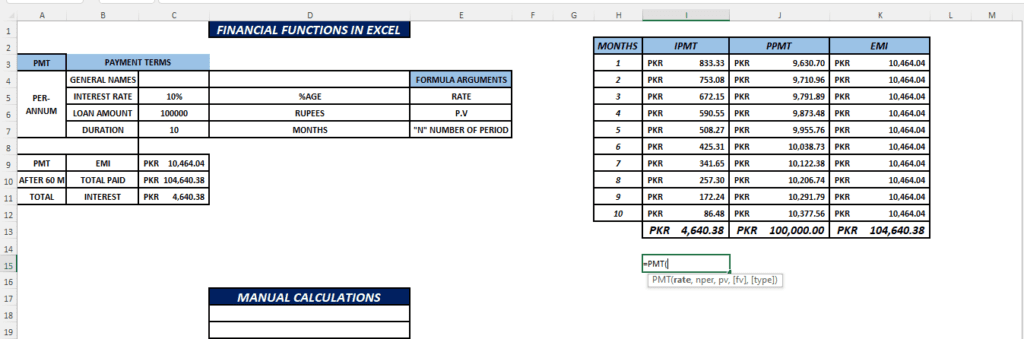
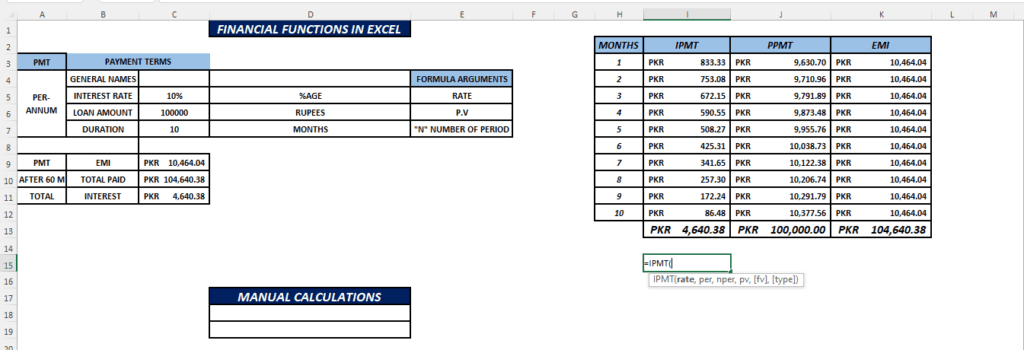
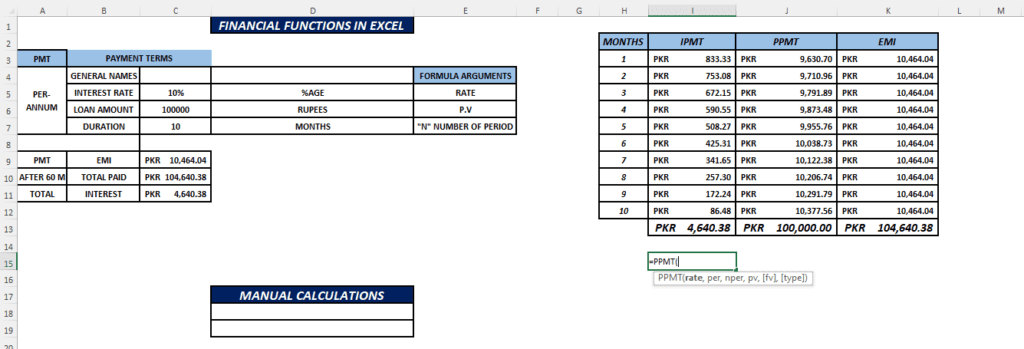
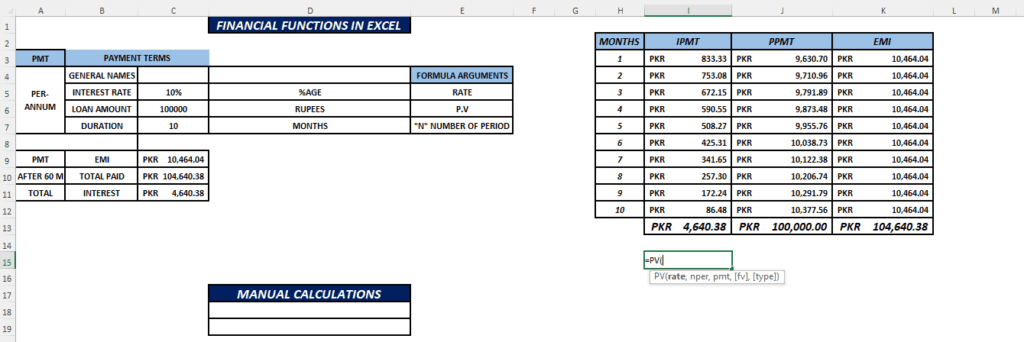
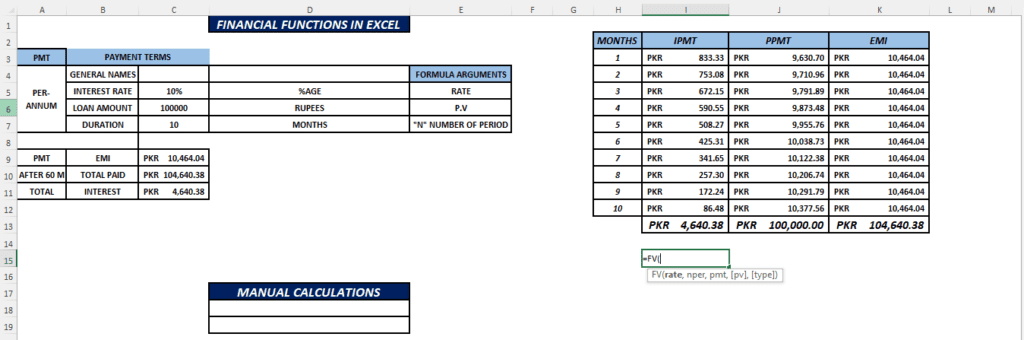
5. PMT, IPMT, PPMT, PV, FV
There are MS Excel financial functions used to calculate loan payments, interest portions, present value, and future value.
What’s Next
Congratulations, you have mastered the best MS Excel formulas from the basic to the advanced level. However, this is not the end here. Practice makes a person perfect. Therefore, I would encourage you to practice every formula we’ve discussed with your own case study.
Additionally, practicing formulas with case studies will help to develop an understanding of using these MS Excel formulas according to the situation in your practical life.
Moreover, I am going to share the link to my worksheet so that you can have a better understanding of using these formulas, knowing their syntax, and you can also play with the values to see how it works in real-time.
Lastly, you should bookmark this guide so you can revisit formulas whenever needed in the future.
If you are a job seeker who wants to make a resume related to any field that must be ATS-friendly and can parse through screening, please visit my guide where I have discussed how to make an ATS-friendly resume, and you can also download those templates through the given link. Don’t miss out!
Read More: ATS-Friendly Resume/ CV Templates: How to Make an ATS-Friendly Resume
Summary
In this detailed guide of MS Excel formulas tutorial, we covered 30 MS Excel formulas from beginner to advanced level, through which you can master MS Excel in 2026 and perform arithmetic, data-driven tasks with more accuracy and efficiency.
Also, we delve into knowing how you can download MS Office 2021 LTSC Professional Plus 2021 – Volume License for free in the step-by-step guide within this blog guide.
Moreover, you have got your free worksheet, which is going to help you in your learning as well as practicing different case studies for developing concepts of these MS Excel formulas usage accurately.
In the end, I would encourage you to comment on the formula that you loved the most and had been looking to master for a long time, and if this detailed guide helped you, do share it with your loved ones who are keen on learning in 2026. Happy Learning!
FAQ
1. What is MS Excel?
MS Excel is a Microsoft spreadsheet program that is used to organize, format, and calculate data.
2. What are basic Excel skills?
MS Excel is a Microsoft spreadsheet program that is used to organize, format, and calculate data.
3. How can we make an entry a calculation in Excel?
To make an entry a calculation, you place an equal sign (=) at the beginning of that entry.
Example:
=SUM(A5:C7)
4. What type of functions can be performed in MS Excel?
MS Excel formulas or functions are comprised of pre-defined functions, mathematical operators, and logical formulas, and have cell references
5. Can MS Excel formulas be used for data analysis?
Yes, you can use Excel formulas for data analysis.
6. What are the top 10 MS Excel formulas asked in the interviews?
These are the formulas that are frequently asked in interviews: SUM, AVERAGE, COUNT, IF, VLOOKUP, HLOOKUP, INDEX, MATCH, SUMIF, and COUNTIF.
7. What is VLOOKUP in Excel?
VLOOKUP is a function in Excel used to search for a value in the first column of a table range and return a related value from a specified column. It is used for data lookup and retrieval.
8. Does MS Excel allow to use of multiple formulas within a single formula?
Yes, you can use multiple formulas within a single formula in Excel by nesting them or combining them with other operators.
9. How can I troubleshoot errors in my MS Excel formulas?
To troubleshoot Excel formula errors, check for typos, missing parentheses, or incorrect cell references. You should also verify data types and make sure functions are used correctly.
10. Is Excel better than Google Sheets?
Yes, MS Excel is better than Google Sheets because Excel can be very useful for advanced data analysis, complex formulas, PivotTables, and Power BI integrations. However, you can use Google Sheets for real-time collabs and sharing online.
11. Can I learn MS Excel for free?
Yes, there are plenty of online resources through which you can master MS Excel for free. You can visit Microsoft Support, W3Schools, YouTube Channels, usamawrites.com, and Simplilearn.com.
12. What is the fastest way to learn MS Excel in 2026?
The fastest way of learning Excel is by practicing real-world examples rather than just watching tutorials or reading resources. Start with basic Excel formulas, then switch to LOOKUPS, and finally work on small projects such as building an expense sheet.
13. How to download MS Excel in 2026?
This is the step-by-step guide to downloading free MS Excel in 2026:
1. Go to your Browser (say Google Chrome)
2. Search for Office Customization Tool
3. Now, open a new tab and search for Office Deployment Tool and click on the download button to download the file.
4. Once you are done with the download, go to the office customization tab and choose the correct architecture for your system (either 32-bit or 64-bit)
5. Now select the office edition. Choose Office LTSC Professional Plus 2021 – Volume License.
6. Keep the other settings as the default.
7. Select the apps you want to download
8. Click on Next until you reach the Finish button
9. In the end, you have to open your command prompt
10. Run it as an administrator and go to the file folder
11. Type this command to run the installer – setup /configure configuration.xml
12. The installer will take some time based on your internet speed. You can close the command prompt, and the installer will continue the installation.
14. What are some must-know Excel shortcut keys?
These are some must-know shortcut keys every Excel user wants to know:
1. ALT + T: APPLYING A FILTER
2. Ctrl + Alt + V: Copy Values without formula
3. F11: INSERTING A CHART
4. Ctrl + Shift + 1: Number
5. Ctrl + Shift + 2: Time
6. Ctrl + Shift + #: Date
7. Ctrl + Shift + ~: General
8. ALT + H + O + I: Auto Fit Column
9. ALT + Enter: Wrap Text
10. F2: Edit Active Cell
11. Ctrl + Shift + Enter: Convert into an Array
12. Ctrl + ‘: To Copy Formula
13. F4: Converts Range into Fixed/ Absolute Format
14. Ctrl + D: Duplicates content from the above row

Hi, I’m Usama, the passionate creator behind usamawrites.com. My mission is to help you unlock your full potential by mastering English communication and the art of copywriting. Whether you’re looking to enhance your writing skills or boost your content’s impact, I’m here to guide you every step of the way. Let’s transform your ideas into powerful words together!